Manage splits, collaboration, and advanced dataset actions
Create reproducible splits, protect test membership, clone safely, manage access, and use inference or DICOM extraction when eligible.
Create reproducible dataset splits#
Before you begin
- Resolve failed sample processing and review label coverage before stratification.
- Decide the Training, Validation, and Test policy before assigning ratios.
- Open Create Splits
Review the current counts and whether the dataset already has split membership.
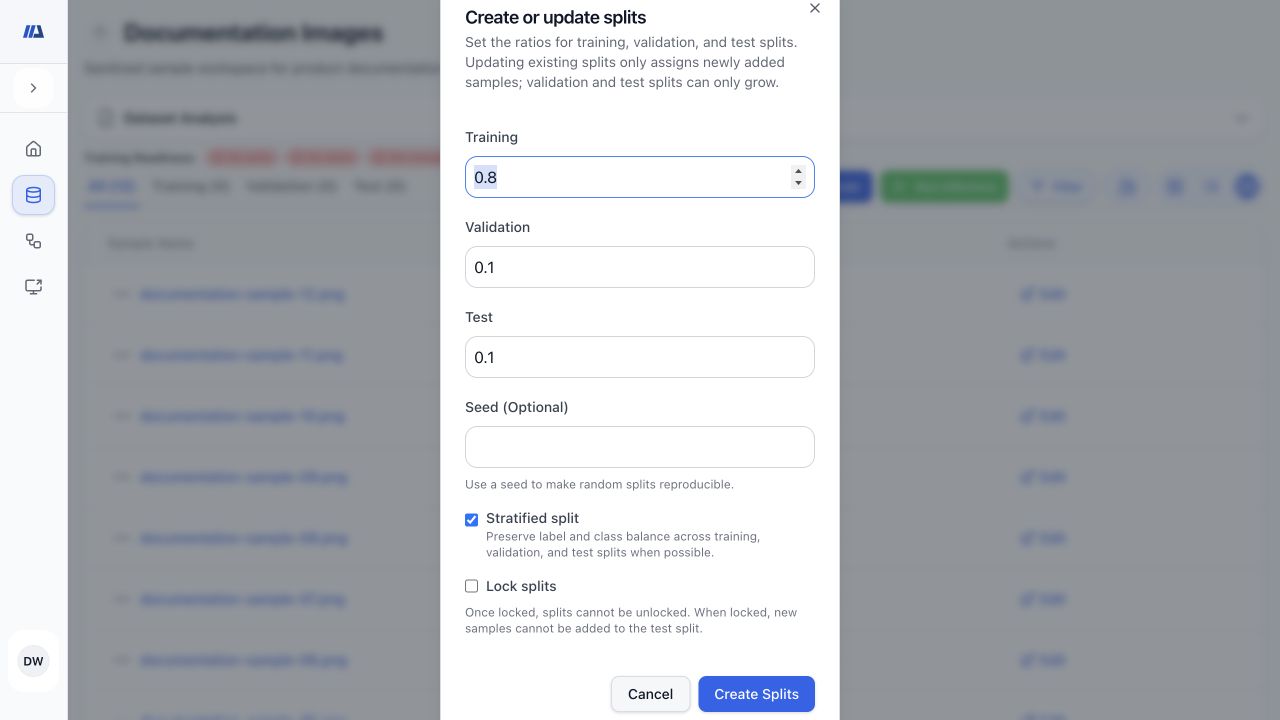
- Set ratios
Enter Training, Validation, and Test ratios whose total does not exceed 100 percent.
- Choose a strategy
Use Random for general assignment or Stratified to preserve label or class balance when the dataset supports it.
- Record an optional seed
Use an integer seed when the same random assignment must be reproducible.
- Preview and create
Review the resulting counts and policy, then create the splits and inspect representative samples in each tab.
Update splits without rewriting evaluation history#
Before you begin
- Review current split counts and identify samples added since the last split operation.
- Treat split locking as irreversible for the dataset workflow shown by the platform.
- Open Update Splits
Confirm the existing ratios, strategy, seed, and lock state before changing anything.
- Assign new samples only
Use the update operation to place unassigned additions without rewriting established Training, Validation, or Test membership.
- Review evaluation growth
Confirm any intended growth in Validation or Test and record the updated counts.
- Lock only when final
Choose the irreversible lock only after the evaluation membership is approved. Once locked, new samples cannot be assigned to Test and test controls are disabled in later add workflows.
- Verify append-only behavior
Compare pre- and post-update membership and confirm that prior assignments stayed unchanged.
Clone the full dataset or a filtered result#
Before you begin
- Decide whether the destination should contain the full dataset or only the current filtered samples.
- Confirm whether split membership must be preserved.
- Set the source scope
Clear search and structured filters for a full copy. For a filtered clone, verify the selected split, search term, and filter chips; selecting a split by itself does not activate filtered cloning.
- Open Clone Dataset
Treat the source count shown by the dialog as a preview of the active query, then enter a clear destination name and description. The source is evaluated again when you submit.
- Preserve splits when required
Enable split preservation to retain matching Training, Validation, and Test membership together with available lock, seed, and strategy settings.
- Create and compare
Wait for cloning to complete, then use the completed destination total as the authoritative clone count and compare its samples, labels, annotations, and split counts with the submitted source scope.
Manage access, collaborators, and dataset lifecycle#
Before you begin
- Confirm the exact dataset and active organization.
- Identify who needs view or edit access before changing visibility.
- Review the access level
Use Private for restricted access, Organization for organization-wide visibility, or Global only when broad sharing is intended and allowed.
- Manage collaborators
Open collaborator controls, add or remove the intended people, and verify their effective access without broadening visibility unnecessarily.
- Respect shared-dataset editing rules
Organization datasets are visible to organization users, while editing Global content depends on workspace permissions even when it can be viewed.
- Archive or restore deliberately
Archive datasets that should leave active workflows and restore them only when they should return to use.
- Delete only the confirmed target
Treat deletion as permanent, read the confirmation carefully, and verify the exact dataset name and ownership before proceeding.
Run inference or extract DICOM slices#
Before you begin
- For inference, choose a deployment whose model and input type match the dataset.
- For DICOM extraction, confirm the intended slice selection before creating derived samples.
- Choose the advanced action
Open Run Inference for compatible model predictions or Extract Slices for an eligible DICOM dataset.
- Set the source and scope
Choose the deployment and samples for inference, or choose the offered slice-selection controls for DICOM extraction.
- Start once and monitor
Follow the queued and running state until the operation completes or fails.
- Inspect outputs
Review inference results or extracted slices on representative samples and record any failed items before retrying.