Recover account access
Reset a password, recover from an expired confirmation link, and understand locked or expired sessions.
Reset a forgotten password#
- Choose Forgot password?
Open the recovery dialog from Sign In and enter the registered email address.
- Open the newest reset link
Use the latest reset message. A reset link is time-limited and should be treated as a credential.
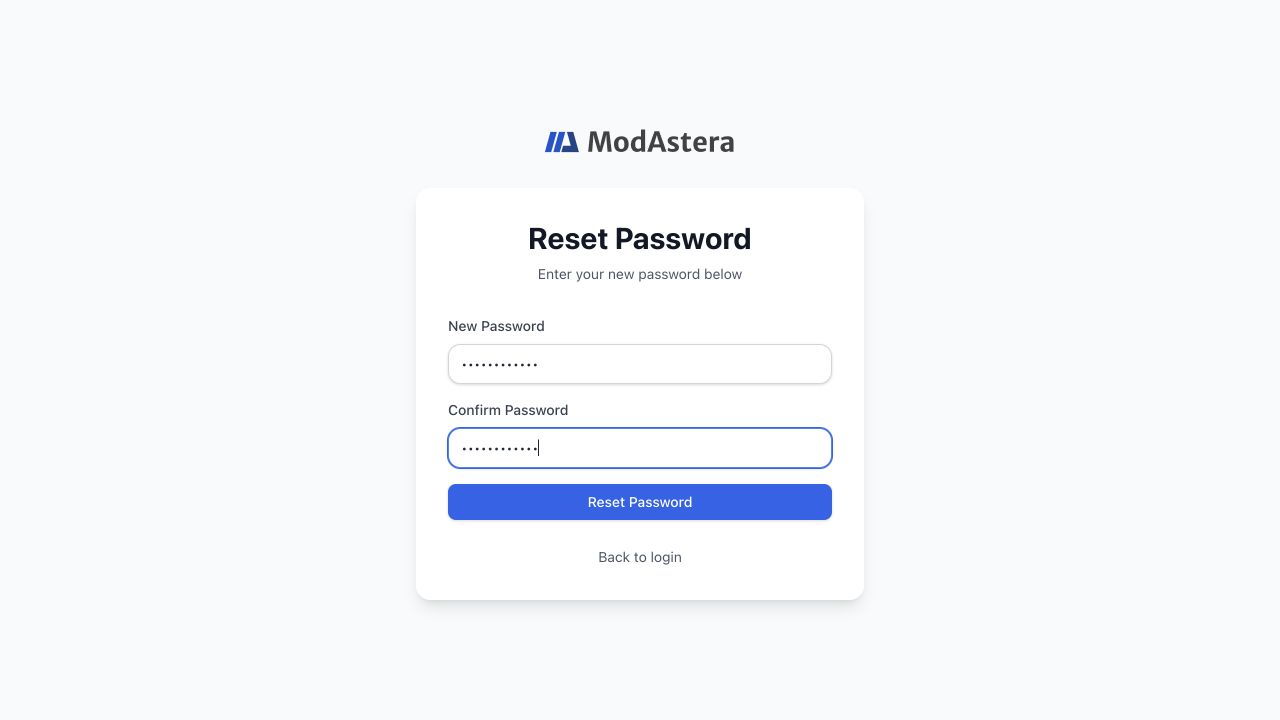
- Choose a new password
Enter and confirm a password that meets the displayed requirements, then submit it once.
- Sign in again
Return to Sign In and use the new password. Existing sessions can require reauthentication.
Recover email confirmation#
- Open the confirmation state
Follow the newest verification message or open Account settings after sign-in.
- Read the displayed status
The page distinguishes confirmed, invalid, expired, and missing-token states.
- Resend when offered
Request one new message and use only that latest link.
- Return to the blocked action
After confirmation, refresh the workspace and retry model creation or another action that required verified email.
Handle an expired session or locked workspace#
- When a session expires, sign in again and return to the same workspace resource.
- When Account Locked appears, contact the organization owner or the support link shown on the page; repeated sign-in attempts do not restore a disabled membership.
- If only one workspace is inaccessible, another organization membership may still be available from the workspace switcher after sign-in.
- On a small screen, Desktop Required is a device-width limitation rather than an account lock.