Check service health and recover from blocked states
Distinguish platform outages, locked membership, device limitations, missing pages, and retryable errors.
Check public service health#
- Open the Health page
Use the public language-specific Health route even when the authenticated workspace cannot load.
- Read the overall state
Healthy, degraded, unhealthy, and unknown summarize current checks; do not interpret unknown as confirmed failure.
- Review the available checks
Use the high-level status shown by the page to distinguish a broad service issue from a resource-specific problem.
- Refresh once
Use the manual refresh control when the displayed state may be stale.
- Retry after recovery
Return to the failed task only after the page reports a usable state.
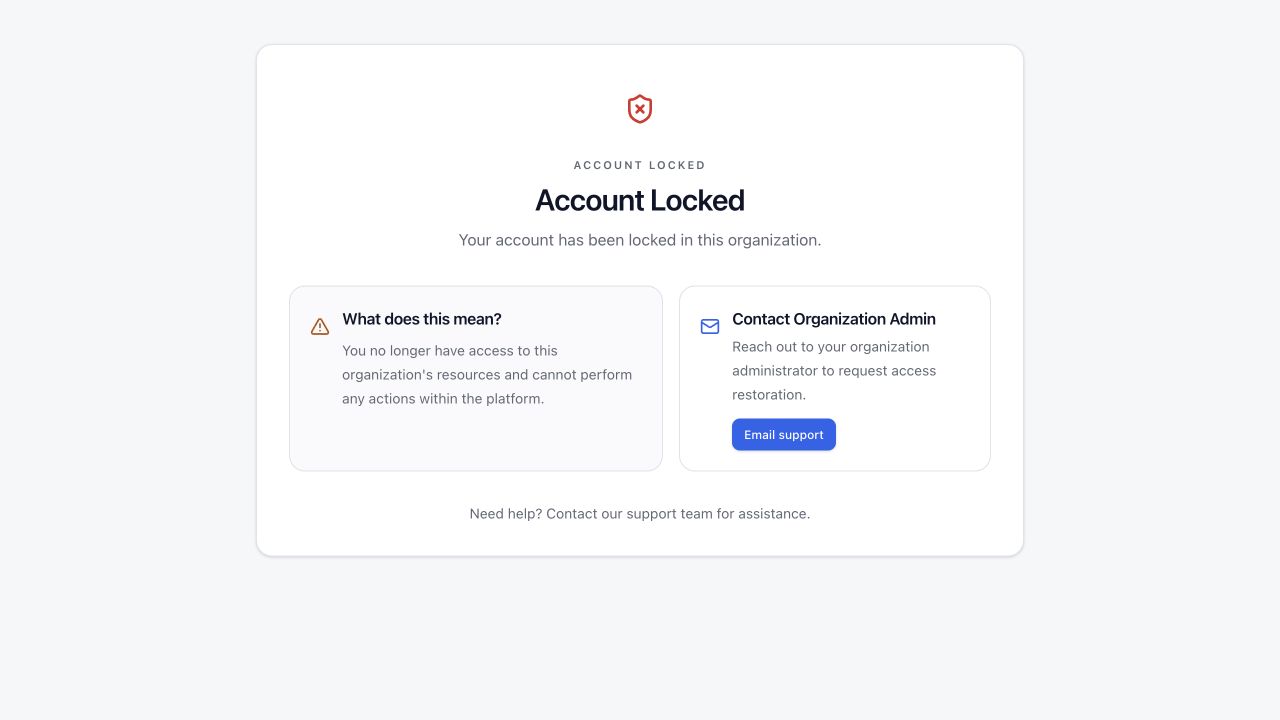
Respond to Account Locked#
- Read the lock explanation and use the provided support path.
- Contact an organization owner to confirm whether access was intentionally disabled.
- Do not create a second account to bypass the organization decision.
- If other workspace memberships remain active, sign in and choose only an organization you are authorized to use.
Respond to Desktop Required#
- Authenticated organization routes require a browser width greater than 768 pixels.
- Widen the window, rotate only if the resulting width is sufficient, or use a desktop/laptop device.
- This state protects complex annotation, visualization, and training interfaces from unsafe small-screen operation.
- The documentation portal itself remains responsive, but the product workspace intentionally requires a wider viewport.
Recover from missing, loading, or request errors#
- Read the page state
List and detail pages distinguish loading, empty, error, and not-found states. Wait for loading to finish before retrying.
- Use Retry once
For a retryable error, choose Retry and observe whether the message or status changes.
- Use Back or Dashboard
A missing resource or 404 page provides a safe route to a known location.
- Confirm workspace and permission
A valid resource can look missing when the wrong organization is active or access changed.
- Collect safe evidence
Record the resource type, non-sensitive visible status, approximate time, and exact safe error text.
Handle an application update prompt#
- Read the current run or upload state before refreshing.
- Save annotations and form changes first.
- Avoid refreshing during a local file transfer; server-side jobs can continue, but the page should be reopened and verified.
- After updating, confirm the active workspace and resource before continuing.