Configure allowed apps and API keys
Register browser origins, create server-side credentials, and manage the complete API-key lifecycle safely.
Choose the correct integration control#
- Allowed Apps registers a browser host and origin so the platform can accept requests from an approved web application.
- API Keys authenticates server-side REST requests. A raw key must never be embedded in browser JavaScript or a mobile application.
- Many integrations need both a registered browser origin for interactive frontend behavior and a separately protected server credential for backend requests.
- Use the Headless & API guide for request paths and examples after configuration is complete.
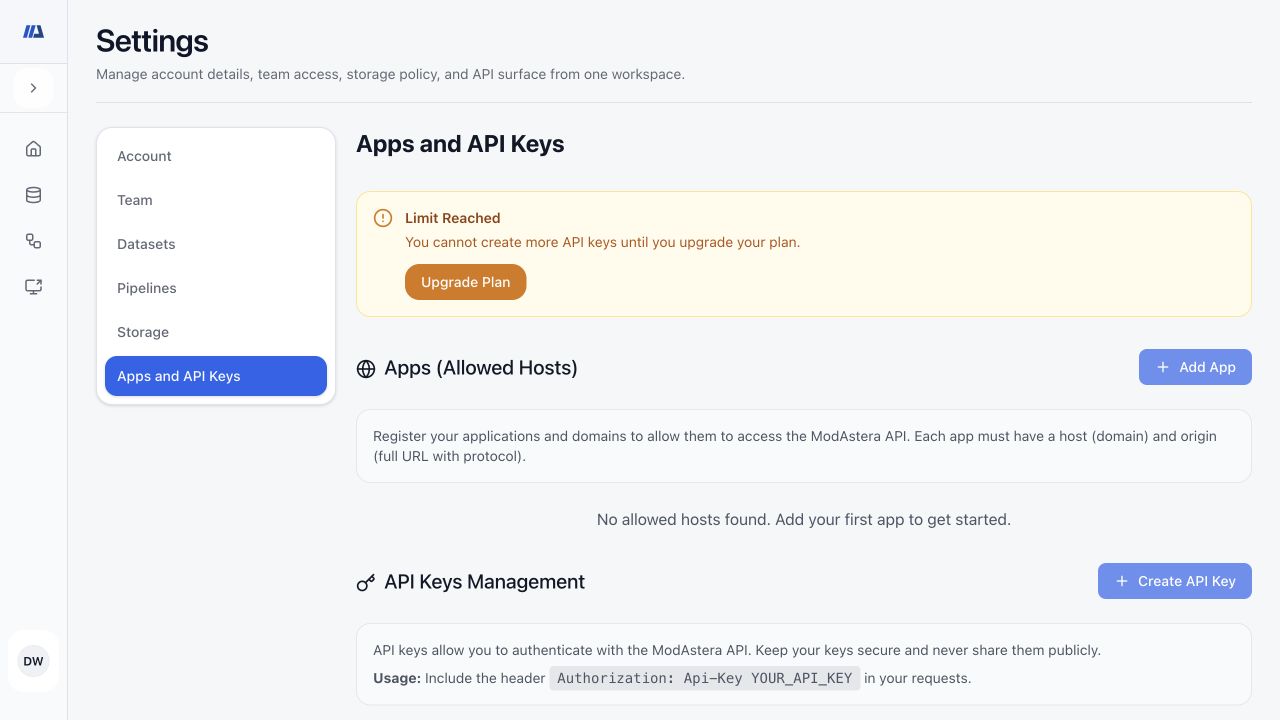
Register an allowed application#
- Open Settings → Apps and API Keys
In Apps, choose Add App.
- Enter an identifiable name
Use a name that describes the application owner and purpose without exposing secrets.
- Enter host and origin
Use the exact browser host and origin, including scheme and port where applicable. Do not add path fragments or credentials.
- Add a safe description
Describe the expected use and environment without including private tokens or customer data.
- Save and allow propagation time
Confirm the entry and status. Registration changes can take roughly 30 minutes to propagate.
Deactivate or remove an application#
- Identify active consumers
Confirm which application and environment use the origin before changing it.
- Deactivate for a reversible stop
Use the active control to stop acceptance while retaining the record when the interface permits it.
- Delete only when retired
Remove the entry after the application has stopped using it and rollback is unnecessary.
- Test from the intended browser
Verify the expected application succeeds and an unapproved origin remains blocked.
Create and store an API key#
- Choose Create API Key
Enter a name tied to one service or operational purpose and, when appropriate, choose an expiry.
- Create once
Submit the form and wait for the one-time secret display.
- Copy the raw key immediately
Store it in a server-side secret manager. The full value is not recoverable from the masked list later.
- Close the secret display
Confirm the key row shows its name, status, created time, last-used state, and expiry without exposing the raw value.
- Make a server-side test request
Send `Authorization: Api-Key YOUR_API_KEY` from a trusted server and use the public API origin supplied for your environment.
Rotate, deactivate, or delete a key#
- Review last use and consumers
Identify every service that depends on the key before changing it.
- Create or regenerate a replacement
Store the new secret safely and update consumers one at a time.
- Verify the replacement
Confirm requests succeed and the new key records expected use.
- Deactivate the old key
Use a reversible inactive state first when a rollback window is needed.
- Delete when no longer needed
Remove the old key only after all consumers have migrated and rollback is unnecessary.