Annotation tools, assisted annotation, and shortcuts
Use drawing, editing, assisted-annotation, recovery, and keyboard controls safely and efficiently.
Manual drawing and editing tools#
- Select and inspect
Use Select to choose, move, or review existing geometry and to work with zoom controls.
- Draw rectangles and polygons
Drag a Rectangle around an object, or use Polygon points for a close contour. Assign the intended label after creating the shape.
- Resize a polygon with assistance
Choose Polygon Resize, drag a bounding-box anchor, and review the newly suggested polygon before accepting it.
- Correct shape geometry
Move the complete shape or individual anchors. Add a polygon point by double-clicking its edge and remove an anchor with the editor action provided for that point.
- Combine or separate overlaps
Select two or more shapes and use Merge to make one polygon. Select exactly two shapes and use Remove overlap to subtract their shared area. Inspect the result before saving.
- Delete or clear deliberately
Delete removes selected annotations. Clear or Escape clears the selection. Confirm which action you are performing before continuing.
Start and recover the annotation engine#
- Open an assisted action
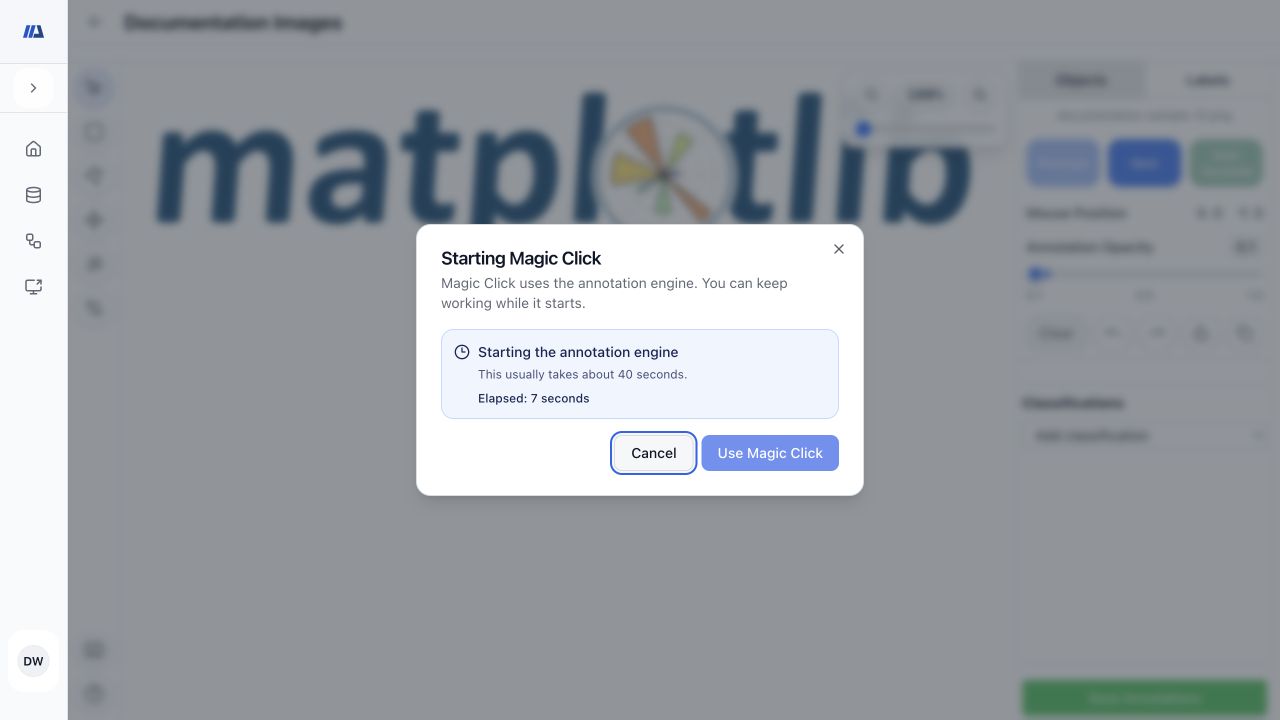
Choose the assisted tool and review the startup confirmation. Opening the surface can request engine warm-up; on a cold Shift+Rectangle start, that first gesture starts warm-up and is not submitted as a suggestion.
- Wait for Ready
Do not submit clicks or start an automatic job while the engine is starting. Keep the startup surface open while it checks readiness, then redraw the intended Shift+Rectangle after Ready appears.
- Respond to an unavailable state
Read the reason shown in the panel and retry only when the state is marked retryable. Continue with manual Rectangle or Polygon tools when assisted processing is not available.
Create and confirm assisted suggestions#
- Use a rectangle suggestion
With Rectangle active and the engine ready, hold Shift while redrawing the target area to request a foreground-object suggestion inside the rectangle. A cold gesture used to start the engine does not create a suggestion.
- Use Magic Click points
Click on the foreground object to add positive points. Alt-click areas that belong to the background to add negative points.
- Refine and confirm
Add or clear points until the preview follows the intended boundary, then choose Confirm to add the suggested shape to Objects.
- Choose the Auto Annotate scope
Select a reviewed box or polygon, confirm its label, and choose how many subsequent similar images, frames, or slices to process. The job works best when the same object remains visually similar.
- Monitor progress and review outputs
Keep track of queued, running, completed, or failed status. Open the affected subsequent samples or frames and correct every generated annotation.
- Recover without duplicating the job
If live updates pause, allow durable status recovery or refresh the job state. Start another job only after confirming that the earlier one did not continue.
Keyboard, navigation, and support reference#
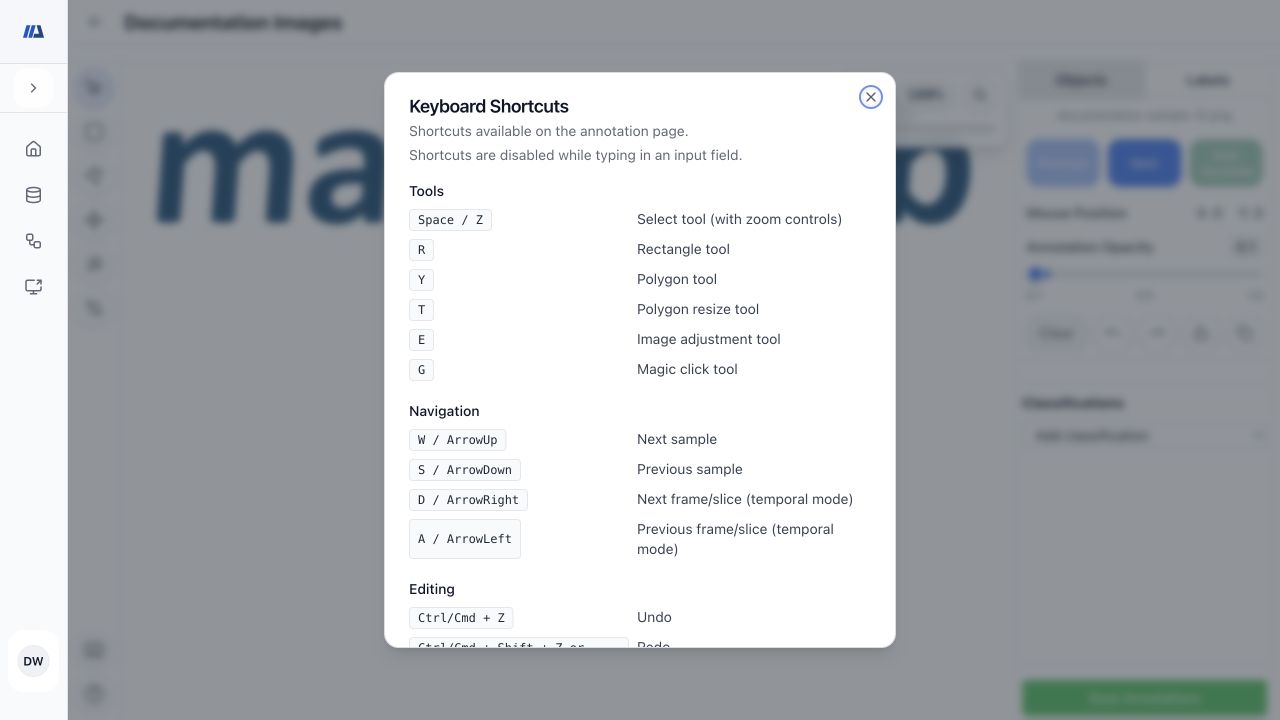
- Space or Z: Select tool with zoom controls.
- R: Rectangle. Y: Polygon. T: Polygon Resize. E: Image Adjust. G: Magic Click.
- W or Up Arrow: next sample. S or Down Arrow: previous sample.
- D or Right Arrow: next frame or slice. A or Left Arrow: previous frame or slice.
- Ctrl/Cmd+Z: Undo. Ctrl/Cmd+Shift+Z or Ctrl/Cmd+Y: Redo.
- Delete or Backspace: delete selected annotations. Escape: clear the selection.
- U: merge two or more selected shapes. C: remove overlap between exactly two selected shapes.
- Ctrl/Cmd+S: save annotations.
- Shortcuts are disabled while typing in an input field.
- Open Shortcuts
Use the keyboard button in the toolbar to review the current canonical shortcut list before relying on a key command.
- Open Quick Help
Use Help for tool-specific instructions, assisted annotation guidance, and shape-editing reminders.
- Report a reproducible problem
Use Report Bug from Quick Help. Include the tool and visible state, but remove patient data, credentials, private URLs, and identifiable screenshots.