Use the dataset library and dataset actions
Find the right dataset, interpret access and readiness, review analysis, and choose actions that are available to your role.
Find and open a dataset#
Before you begin
- Confirm the organization switcher before judging whether a dataset is missing.
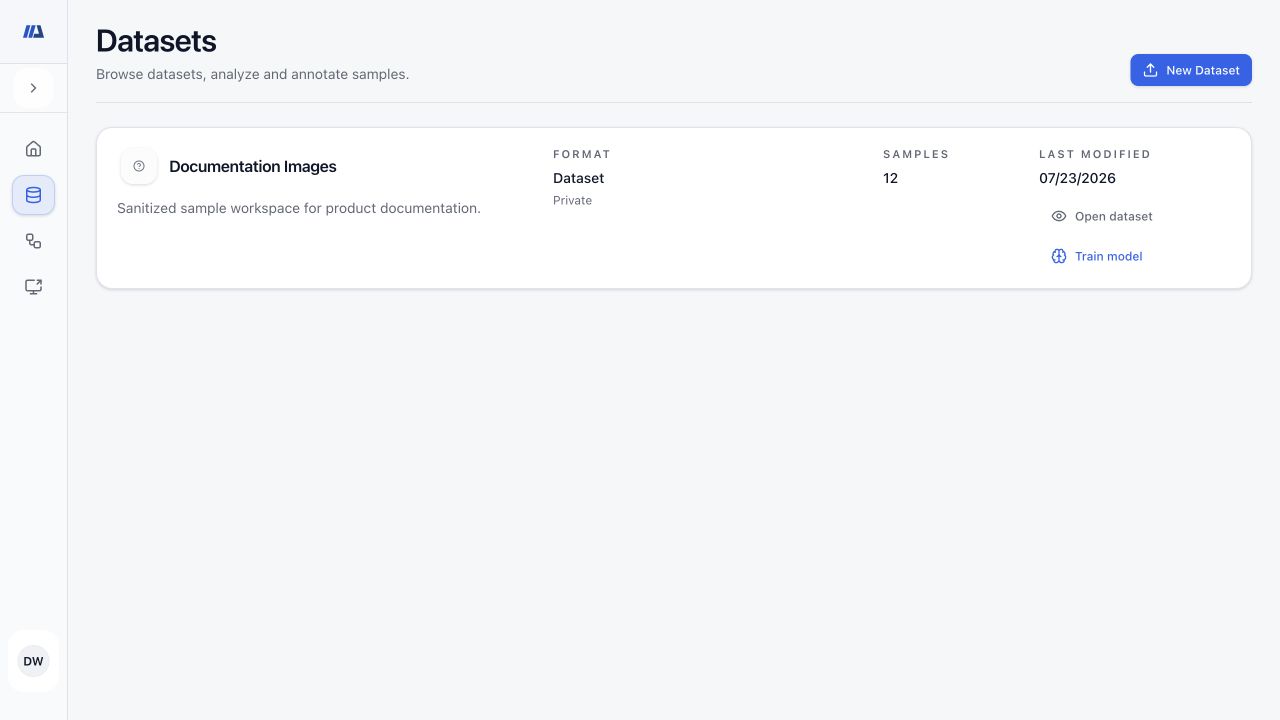
- Open Datasets
Review the initially loaded dataset names, descriptions, formats, sample counts, last-modified values, and access badges.
- Load more when needed
Scroll toward the end of the list or choose Load more when offered. Later rows append to the rows already loaded so you can continue browsing a large library.
- Check access context
Private datasets have restricted access, Organization datasets are shared within the organization, and Global datasets are broadly shared but may remain read-only.
- Open the dataset
Choose Open dataset to review it. Choose Train model only after readiness has been verified and your role permits training.
Review dataset detail, readiness, and analysis#
Before you begin
- Wait until the sample processing state is current.
- Know the expected task, labels, and evaluation split policy.
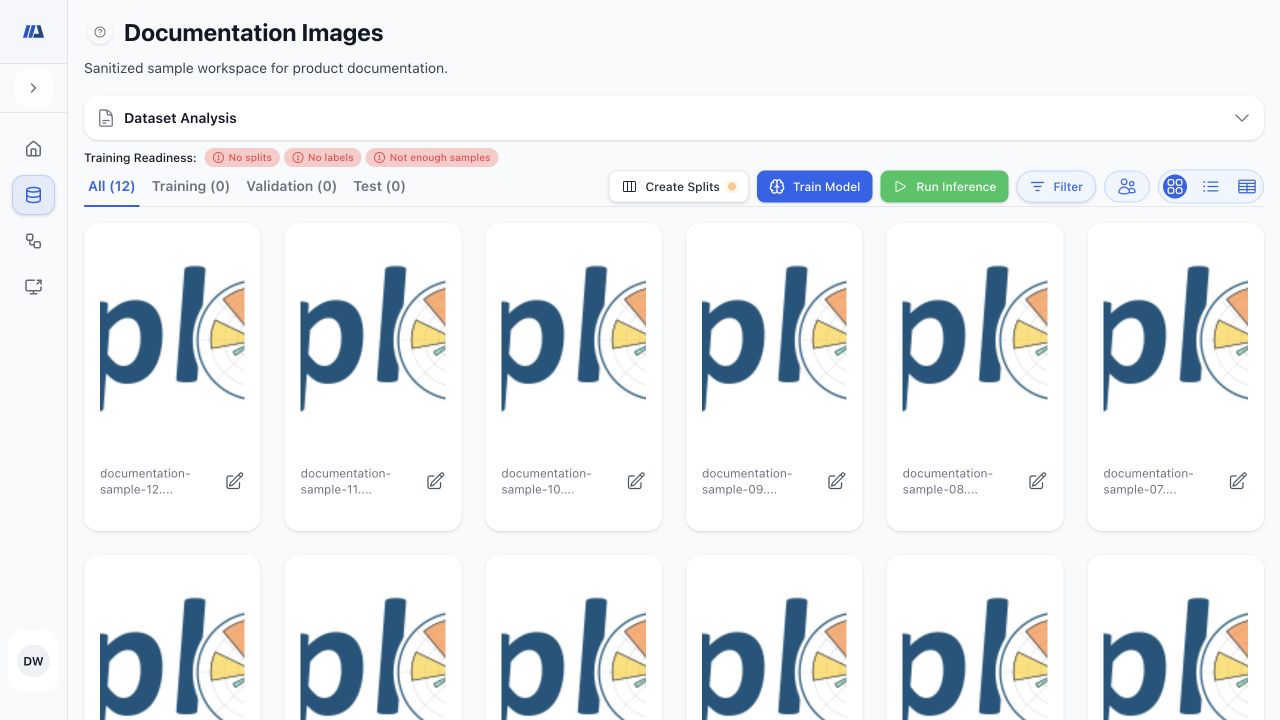
- Read the dataset summary
Confirm the name, description, format, total samples, and latest modification before changing anything.
- Check readiness badges
Review split, label, and sample-sufficiency indicators. A completed upload alone does not guarantee training readiness.
- Inspect sample and annotation coverage
Review total and annotated samples, recent changes, classification and detection counts, and annotation coverage when those measures are available.
- Explore labels
Review the label overview, Top Labels, and distribution. Filter by split or label and switch numeric or categorical axes and grouped or stacked presentation when available.
- Compute or explain when needed
For a large dataset, start the offered analysis computation and wait for completion. Review any generated explanation as supporting context, then verify it against counts and representative samples.
Maintain the description and labels#
Before you begin
- Agree on task language and label definitions with collaborators before renaming or changing labels.
- Edit the summary
Update the dataset name or description when the task or provenance needs clarification, without adding confidential identifiers.
- Review the label set
Confirm that label names, types, and values are consistent across the dataset and match the intended training task.
- Correct sample annotations
Use Edit Annotations for supported datasets to fix label assignments or geometry, then save and re-open representative samples.
- Recheck downstream readiness
Refresh analysis and readiness after material metadata or annotation changes.
Choose the correct dataset action#
Before you begin
- Confirm the dataset identity, active split, filters, and current processing state before choosing an action.
- Add Samples opens upload, compatible-dataset, deployment-execution, capability-gated local-file, and API ingestion paths.
- Upload Annotations imports CSV, platform JSON, COCO JSON, or masks supported by the dataset.
- Create or Update Splits manages Training, Validation, and Test membership.
- Download Annotations exports supported CSV or JSON annotations by split.
- Clone Dataset copies the full dataset or the currently filtered result.
- Edit Annotations opens the annotation workflow for supported editable data.
- Run Inference uses a compatible active deployment; Extract Slices is specific to eligible DICOM datasets.
- Train Model starts pipeline creation only when the dataset and your role are eligible.
- Open the action menu
Open the dataset and review only the actions currently presented for that dataset.
- Confirm scope
Check whether the action affects all samples, the active split, or the current filtered result.
- Check asynchronous status
For imports, inference, extraction, analysis, and other background work, follow the queued, running, completed, or failed state.
- Verify after completion
Refresh the dataset and confirm counts, labels, annotations, splits, or generated results affected by the action.