Manage resource lifecycle and storage
Change dataset access, archive or restore resources, review storage, and delete data safely.
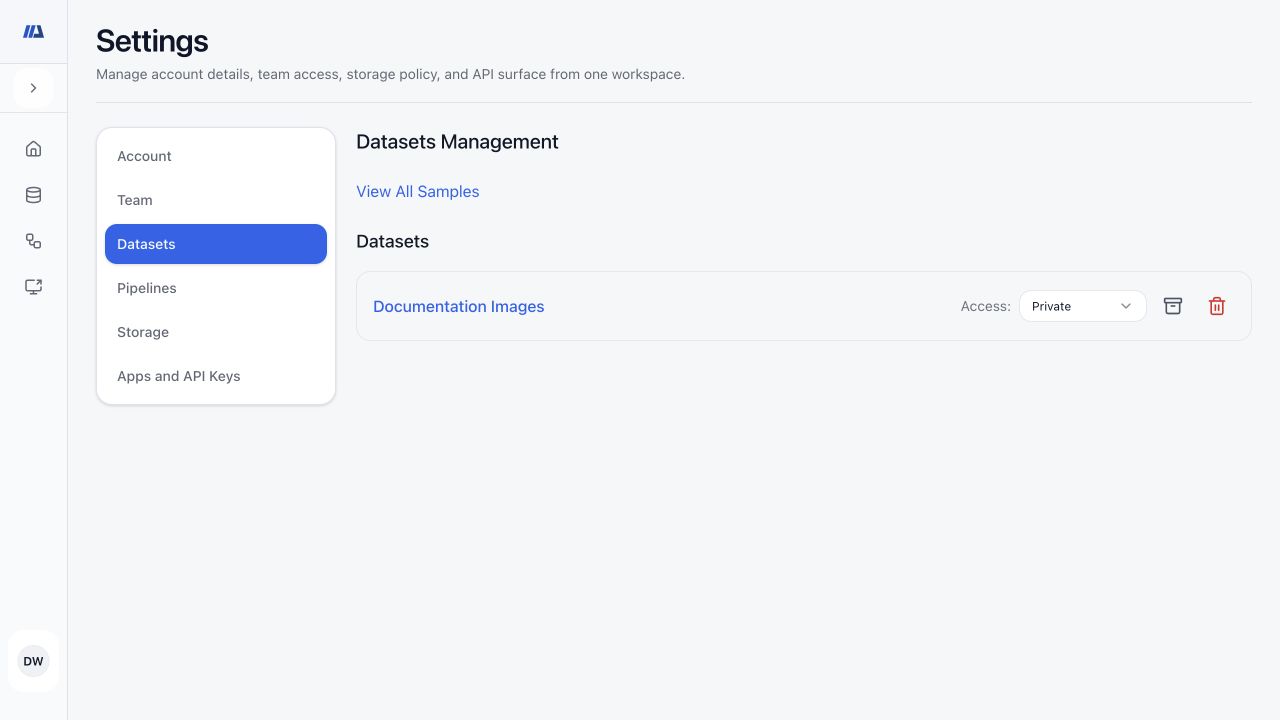
Manage datasets from Settings#
- Open Settings → Datasets
Use the list to open a dataset or the organization-wide Samples library.
- Review access level
Private limits access to authorized collaborators, organization shares within the active workspace according to role rules, and global exposes a shared dataset where that option is permitted.
- Archive or restore
Archive inactive datasets to remove them from normal working views without immediately deleting them; restore when work resumes.
- Delete only when final
Read the confirmation and verify the dataset name, ownership, downstream pipelines, and any required export before permanent deletion.
Manage pipelines from Settings#
- Open Settings → Pipelines
Review pipeline name, status, and instruction to identify the correct resource.
- Open the pipeline when uncertain
Check its active run, completed versions, deployment relationship, collaborators, and snapshot needs before changing lifecycle state.
- Archive or restore
Archive a pipeline that should leave normal working views, or restore it for renewed work.
- Delete only when authorized
Creator restrictions and completed artifacts can affect availability. Confirm that required results, reports, or snapshots are retained first.
Review storage usage#
- Open Settings → Storage
Compare current usage with the workspace tier limit before starting a large upload or snapshot.
- Review task directories
Inspect directories associated with model work and use the resource name or date to confirm ownership.
- Review Files
Navigate the user file tree, preview supported images, and refresh when recently generated files are not yet visible.
- Select only confirmed targets
Use individual selection or Select all only within a directory whose contents you have reviewed.
Free storage safely#
- Preserve required outputs
Download required reports, snapshots, annotation exports, or result files before cleanup.
- Delete the narrowest target
Prefer deleting an identified obsolete file or directory over broad cleanup.
- Read the permanent-deletion warning
Bulk and individual storage deletion cannot be undone by the documentation site.
- Use Free Up Space only when appropriate
This action permanently removes inaccessible task directories and user cache content. Confirm active work will not depend on those files.
- Refresh and verify
Reload the storage summary and confirm expected files remain and usage changed.