Annotation file reference and troubleshooting
Prepare supported annotation files and systematically recover from upload, annotation, training, and result problems.
Choose an annotation import format#
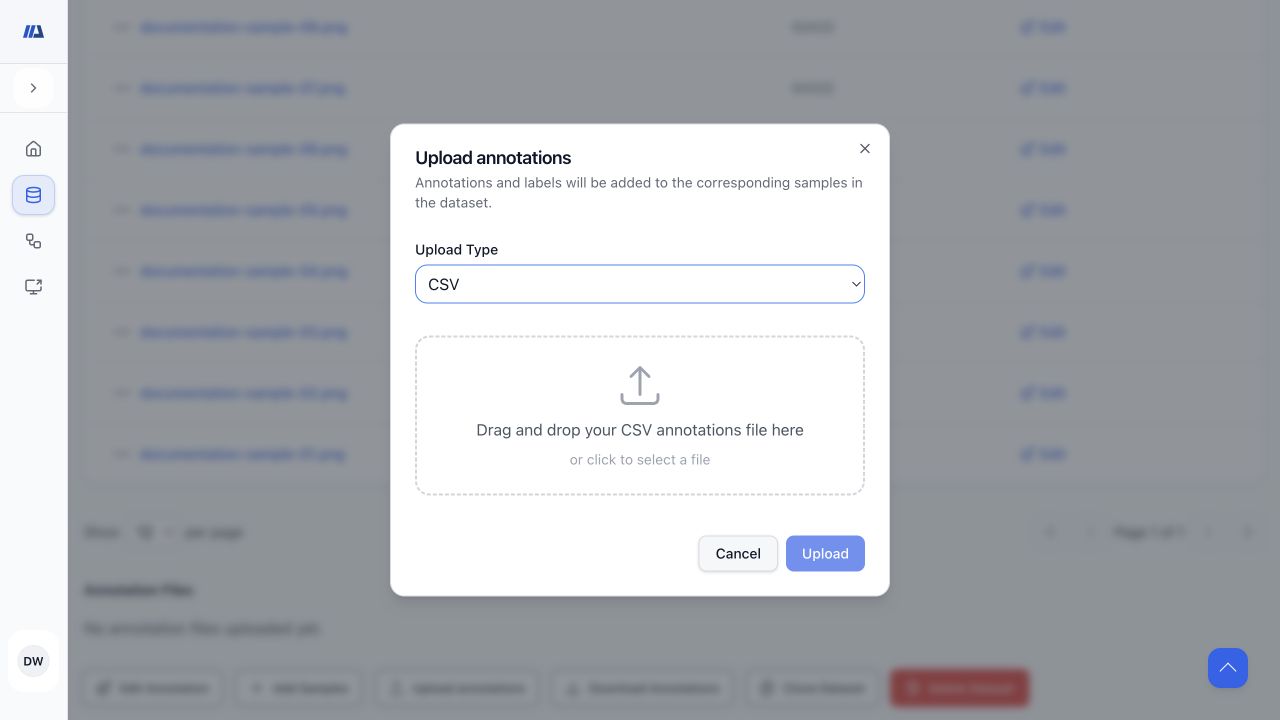
- CSV: map the sample-name field and each label column as categorical, continuous, or segmentation; optionally map split membership.
- Platform JSON: use an array of sample annotation objects matched by name, with an `annotations` array for each sample.
- Spatial platform JSON: boxes and polygons can include frame, slice, and view context. Polygon points use the supported flat coordinate representation.
- COCO JSON: include `images`, `annotations`, and `categories` arrays; image filenames must match uploaded sample filenames.
- Masks: map detected colors to dataset labels, or select a single mask label for the import.
- Imports merge into matched samples. Test consequential mappings on a small clone or representative subset first.
Validate files before import#
- Use stable, unique sample names and match filename spelling and case exactly.
- Keep label names, capitalization, and value types consistent across the dataset.
- Validate coordinates, image dimensions, polygon point order, and class/category identifiers.
- Represent empty annotations intentionally rather than with malformed placeholder geometry.
- For video or volumes, verify frame, slice, and view indices use the expected convention.
- Retain a source export before a large merge or mapping change.
Recover from an import failure#
- Read the preview and error summary
Separate unmatched images, invalid annotations, skipped rows, and mapping errors.
- Fix the source file
Correct the referenced filenames, columns, categories, dimensions, or geometry outside the import dialog.
- Retry a small batch
Confirm representative classification values and spatial shapes before importing the full file.
- Open matched samples
Verify labels, boxes, polygons, masks, frame/slice/view, and split membership.
Troubleshoot common workflow problems#
- An action is missing
Confirm the active workspace, ownership/collaborator role, organization role, plan capacity, verified email, data type, resource state, and enabled service.
- Upload processing does not finish
Keep the queue visible long enough to distinguish browser transfer from server-side processing, then refresh the dataset count once.
- Annotation assistance is unavailable
Check the annotation-engine status, supported data type, selected geometry, and Health page before retrying.
- A pipeline cannot start
Review dataset readiness, required splits, generated resources, email verification, active duplicate run, and compute capacity.
- Training runs out of memory
Use the recommended smaller batch size when provided, or select a compatible architecture/input configuration.
- Results or previews do not load
Confirm the selected model version completed, retry the protected artifact once, and review service health.
Preserve data quality and request support safely#
- Visually inspect representative samples from every label and split.
- Prevent subject or patient leakage across training, validation, and test data.
- Record the dataset and model version used for any reported result without copying private identifiers into public material.
- When requesting support, include only the resource type, safe visible status, approximate time, and exact non-sensitive error text.